Tuva Tools v2.10.0
Released 8/1/2021
We've focused on one major enhancement for 2.10.0: Data Insertion. This enhancement will allow teachers and students to upload data into their personal repositories by directly inputting data into the Table View. It will also allow people to update their existing datasets by opening up the Table View and changing values in the appropriate table cell.
Added:
-
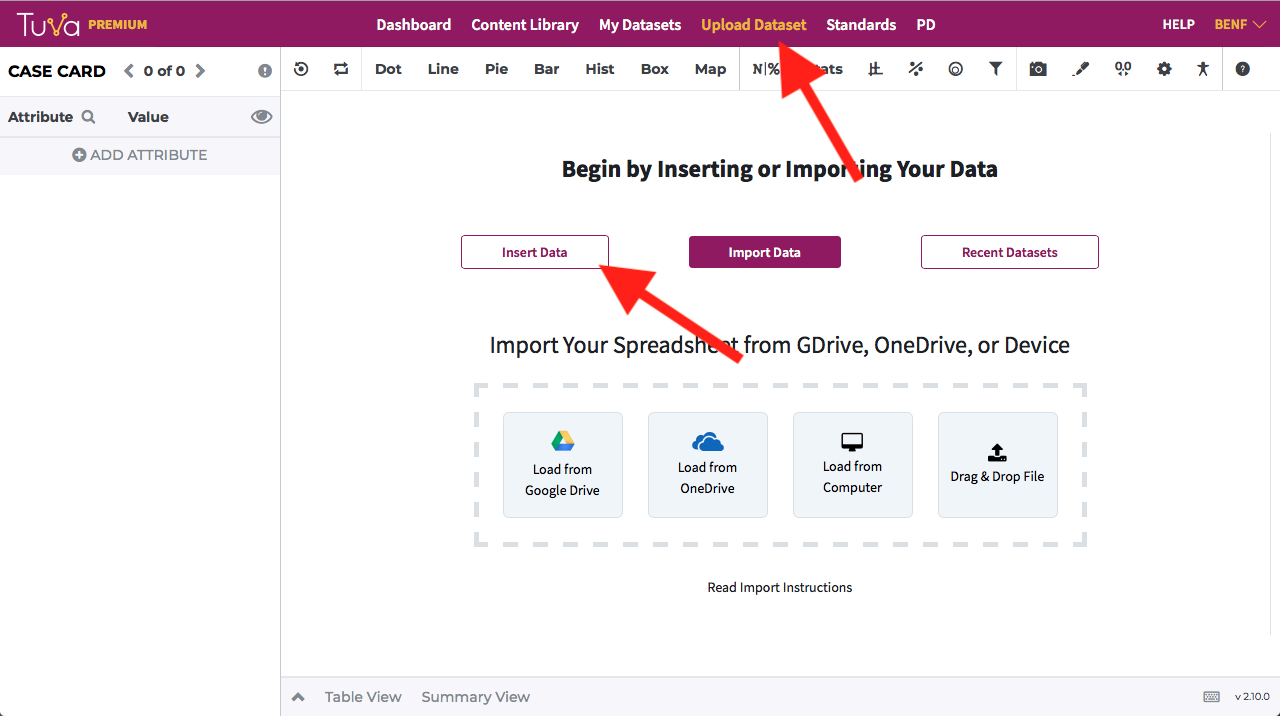
Data Insertion: The data insertion feature allows you to do two things:
edit existing data that you've uploaded and create a new dataset by directly typing values
into the cells in the Table View. You can access this feature by clicking "Upload Dataset"
from the top navigation bar, and then clicking "Insert Data."
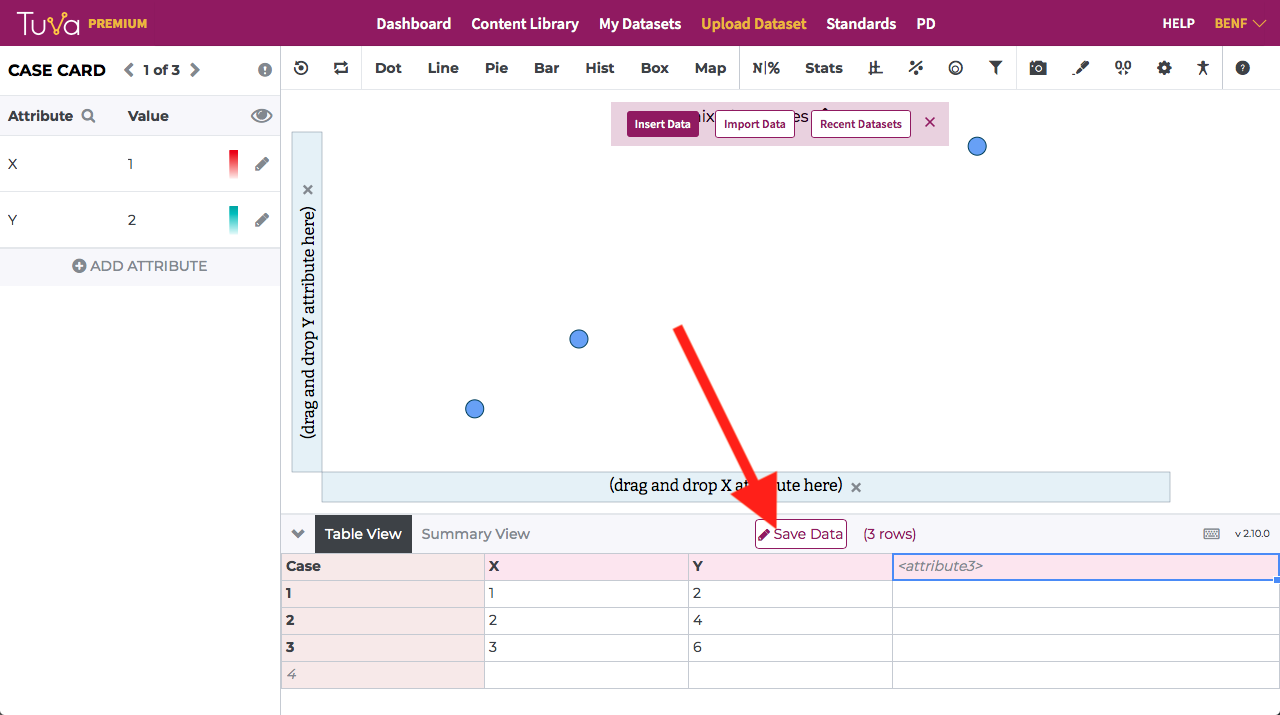
In the screenshot below, we can see an example of data that's been directly inserted into the Table View. Once you feel satisfied with the data you've entered, you will need to click "Save Data" to save the data to your personal data repository.
From there, you will go through the usual data upload steps to confirm the dataset name, privacy settings, and attributes. After you've finished the upload and review process, you'll land back on the dataset page giving you access to the Table View with an Edit Data button.
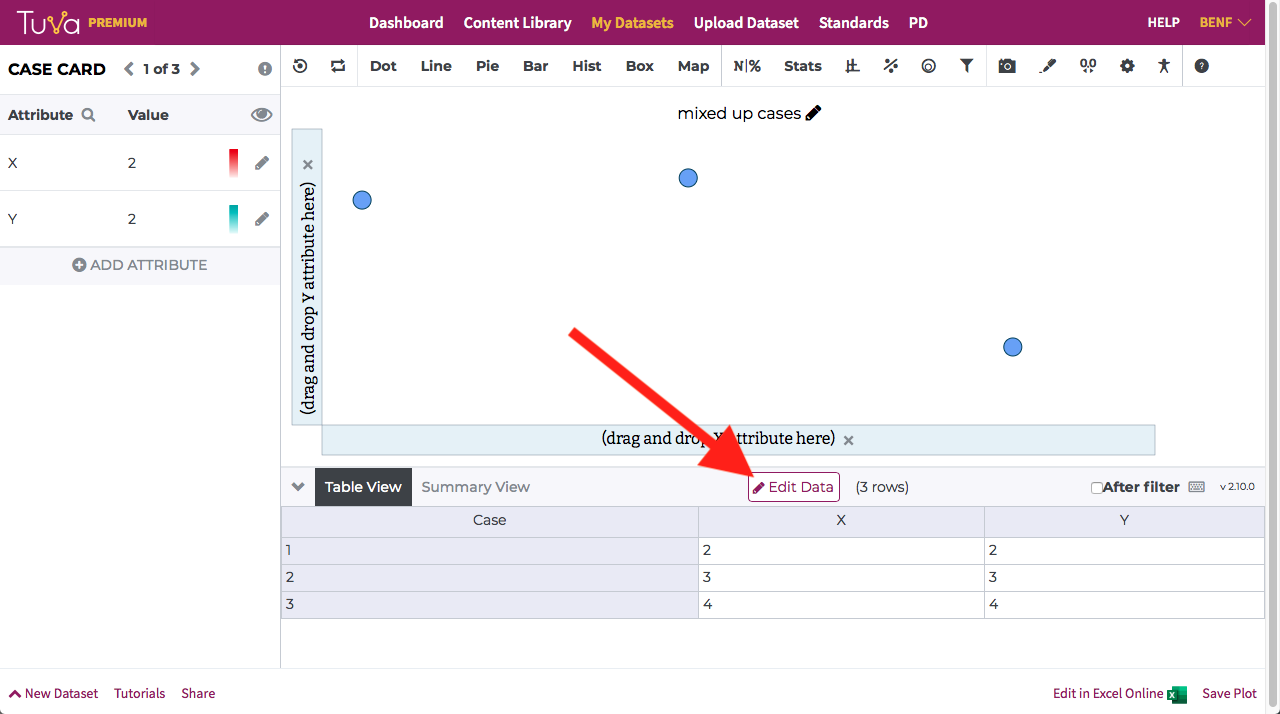
Clicking the Edit Data button will change the state of the Table View so you'll be able to update any of the values seen in the Table View.
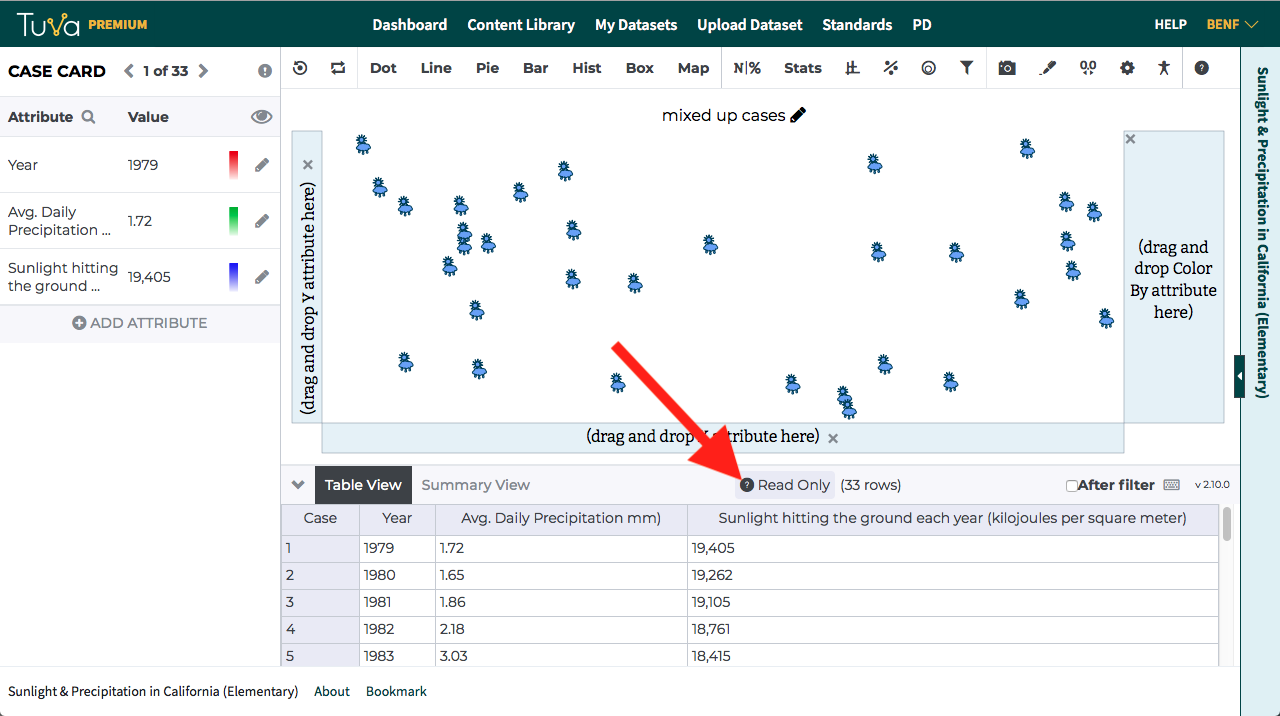
Note: The Insert Data feature is only available when uploading your own data or editing an existing dataset you've uploaded. When opening a dataset from the Content Library, you will see the Read Only button in the Table View. This means you will not be able to modify any Tuva Datasets.
Bug Fixes:
- Case Selection Performance Issue: We fixed an issue where selecting many cases in the plotting area would slow the performance of the Tuva Tools when the case was also highlighted in the Table View.