Keyboard Navigation
Tuva provides robust keyboard navigation throughout the data exploration tools. Users can place attributes on the X-axis, Y-axis, and Legend; switch between graph types; and interact with every control — all using only the keyboard.
Who benefits
- Students with limited fine motor control who cannot use a mouse reliably
- Students using switch access devices or other alternative input hardware
- Students who simply prefer keyboard interaction
See it in action
Demonstration: Building a graph in Tuva using only keyboard navigation
Keyboard Shortcuts
The Tuva tools consist of three regions: the Case Card on the left, the Plot Menu at the top, and the Plotting Area in the center. Use these shortcuts to navigate all three:
| Key(s) | Action |
|---|---|
| Tab | Move focus to the next button, interactive item, or text field |
| Shift + Tab | Move focus to the previous button, interactive item, or text field |
| ↑ ↓ ← → | Navigate dropdown menus, text fields, and radio button groups |
| Enter or Space | Select or activate the focused button or interactive element |
| Escape | Close a focused dropdown menu |
Navigating the Case Card
The case card on the left lists all attributes in the dataset. To access the dropdown menu for each attribute while tabbing, first turn on Attribute Keyboard Support from the Accessibility Card in the top toolbar.
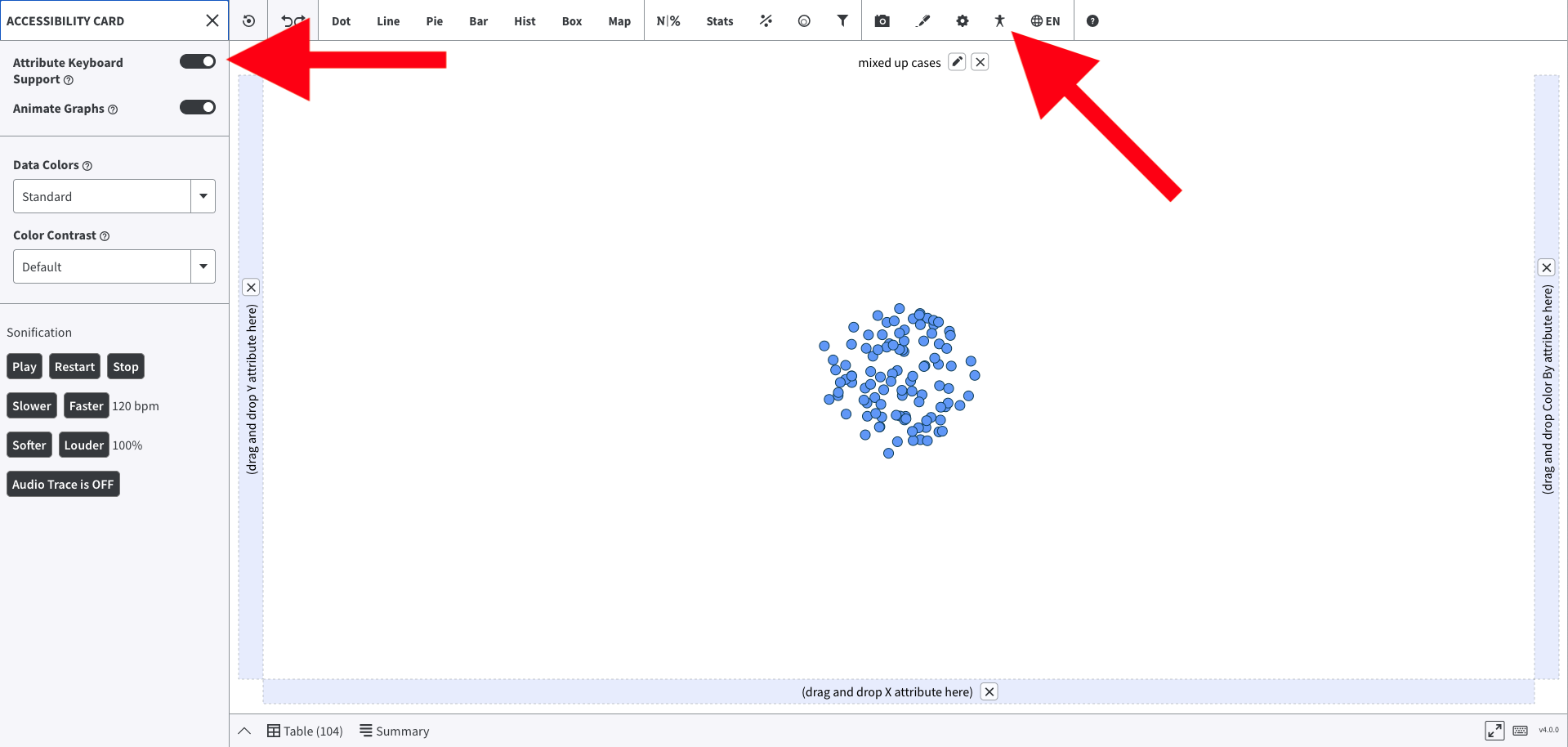
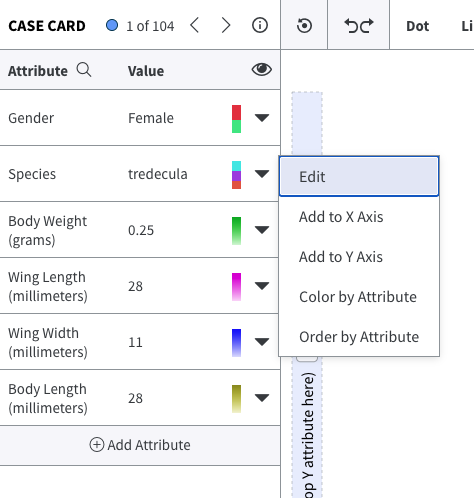
Once enabled, tabbing through the case card will reveal a dropdown menu for each attribute. From there you can:
- Add the attribute to the X-axis or Y-axis
- Color-code data cases by the attribute
- Order cases by the attribute
- Edit the attribute
Navigating the Plot Menu
After tabbing through the case card, focus moves to the plot menu at the top. You can navigate between menu items with Tab / Shift+Tab, or move horizontally with the ← and → arrow keys. When a dropdown is open, use ↑ and ↓ to move through its options.

Navigating the Plotting Area
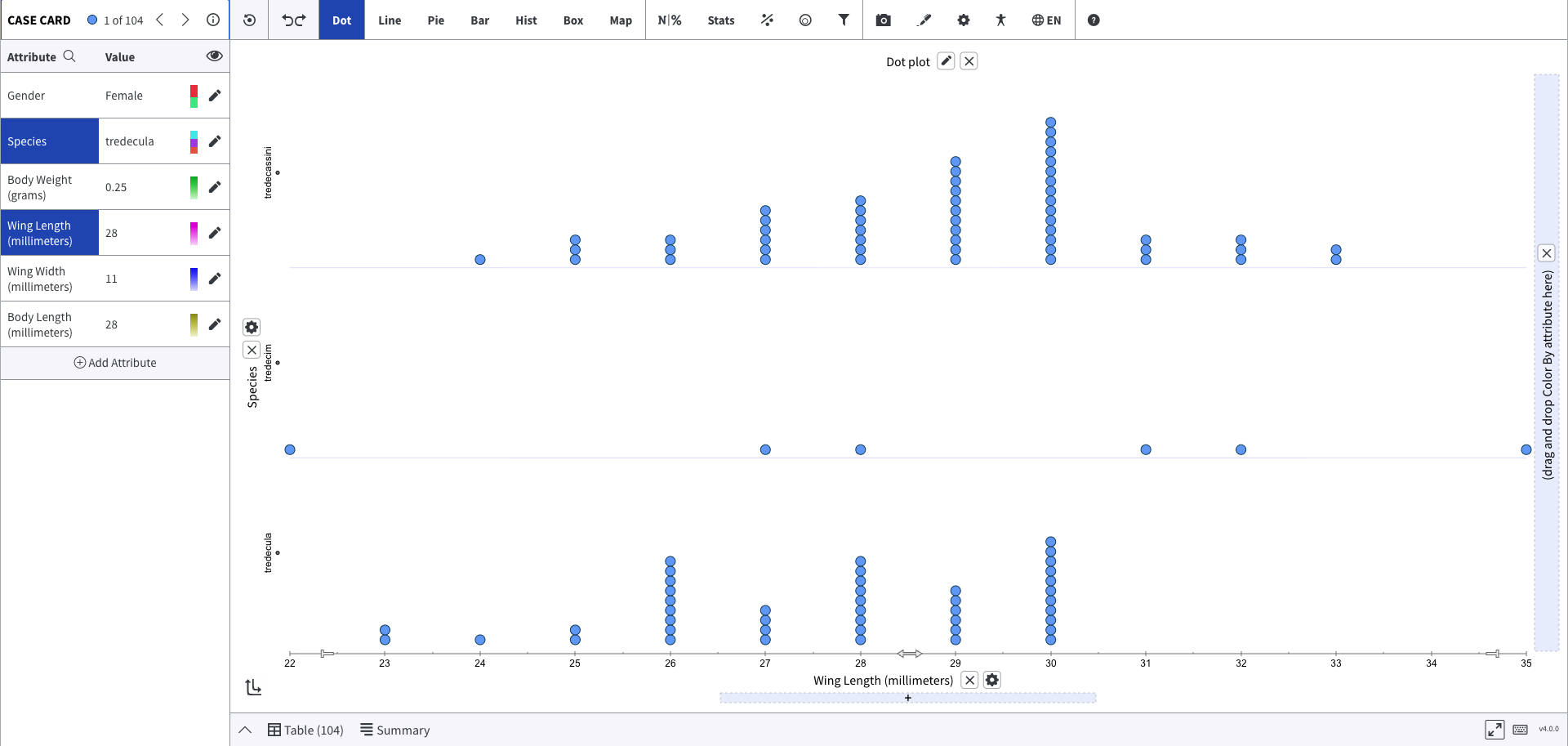
Continuing to tab brings focus to the buttons inside the plotting area. These buttons let you remove attributes from the X-axis, Y-axis, Legend, and Order by — completing the full graph-building workflow without touching the mouse.
Finding the Shortcut List Inside Tuva
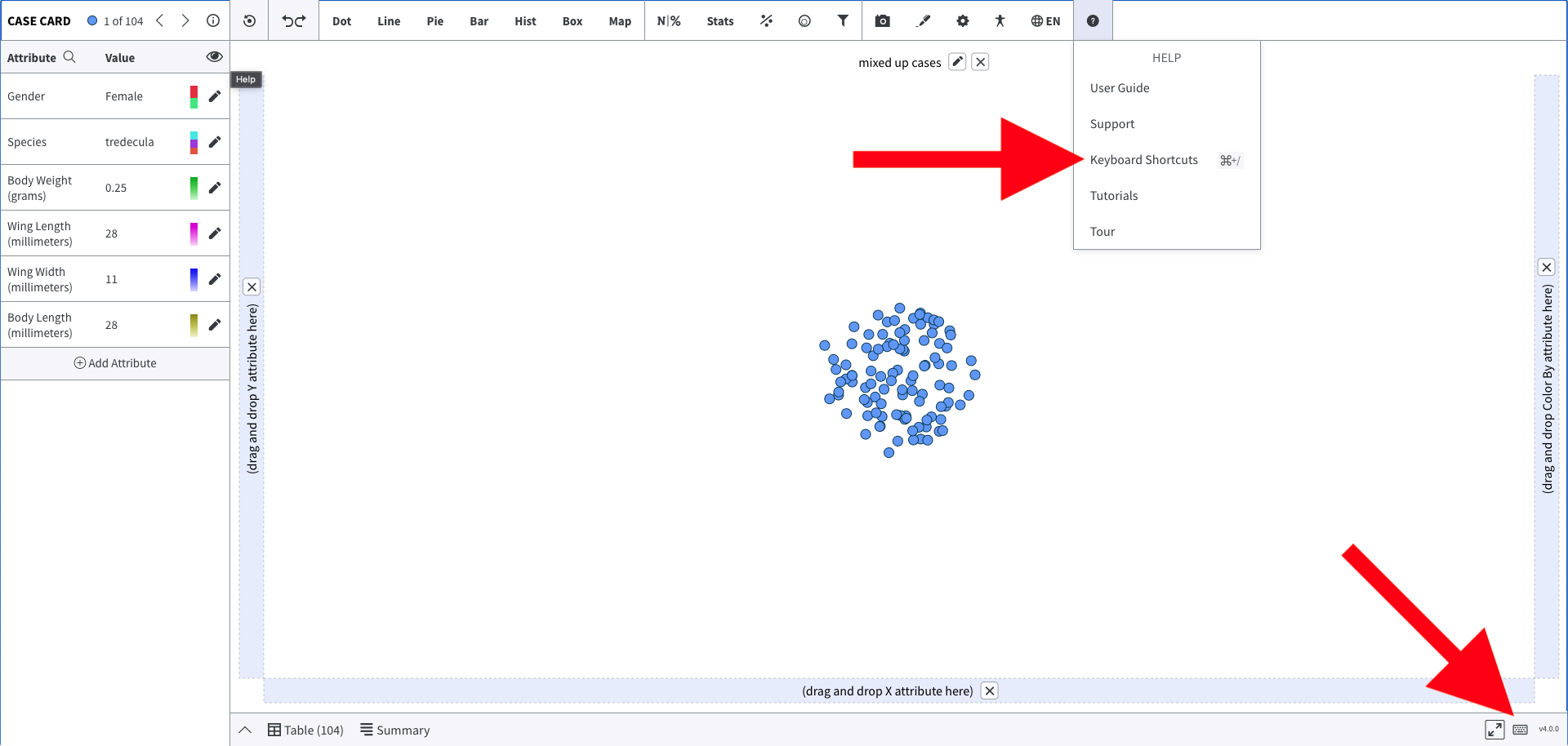
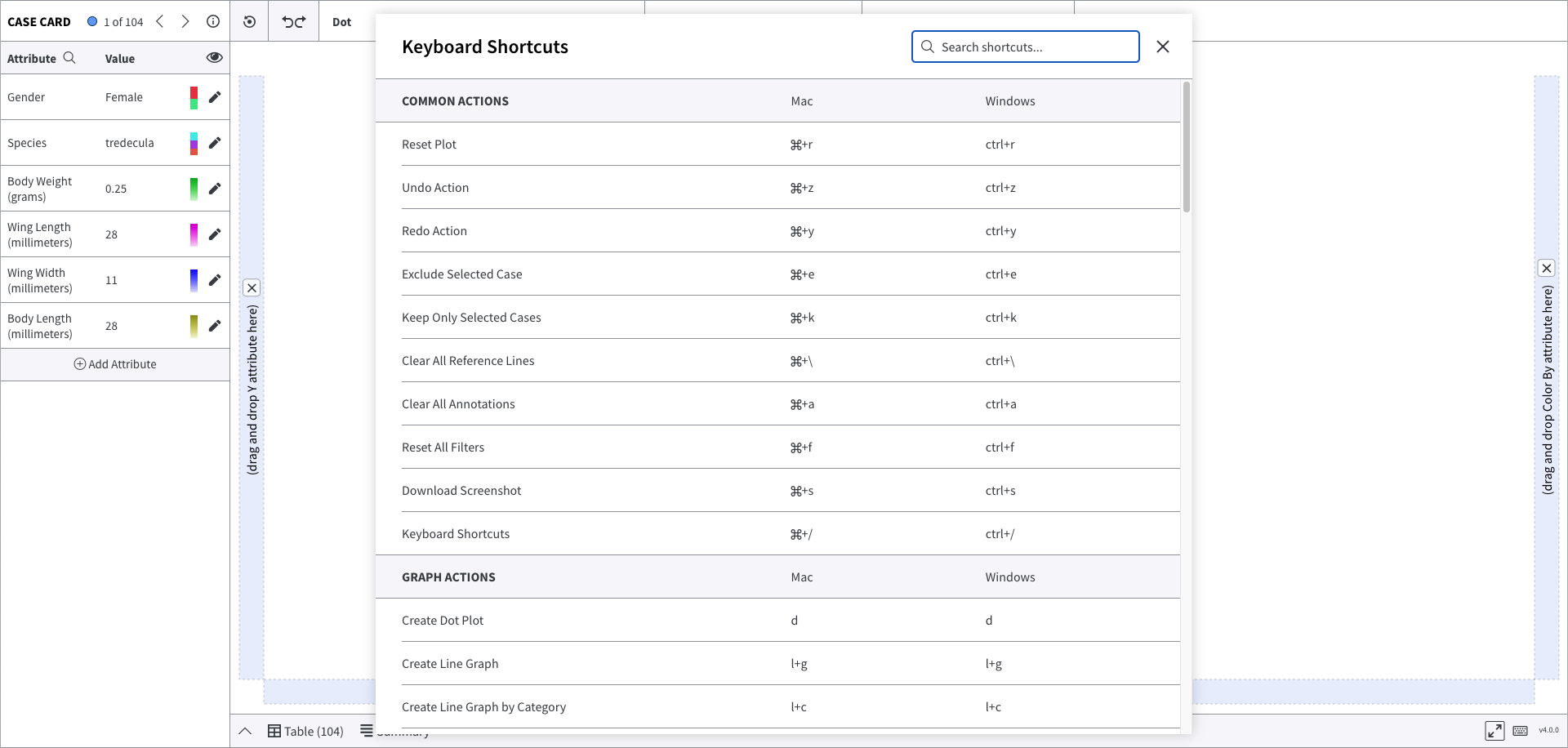
The full keyboard shortcut list is available directly inside the tool. Click the keyboard icon in the bottom right corner of the interface, or find it through the help menu. A pop-up will appear listing all shortcuts and their actions.
Printable Keyboard Shortcuts
A printable PDF version of the keyboard shortcuts is available for easy reference — useful for posting near a student's workstation or including in an accessibility accommodations plan.